

Campaign settings
These settings live inside a variant. They control when an element appears, how often, and what offer it carries.
Every setting here is worth getting right. A good offer shown at the wrong moment, or shown five times in a row, does more harm than not showing it at all.
Trigger
A trigger is the condition that has to be true before the element can appear.
Triggers can be about the current moment, like a visitor moving their mouse toward the browser bar to leave. They can be about the session, like time spent on the site. And they can be about the visit itself, like whether this is the visitor's next session after adding something to their cart.
You can combine conditions. "More than 600 seconds on site or exit intent shown" fires on whichever happens first.
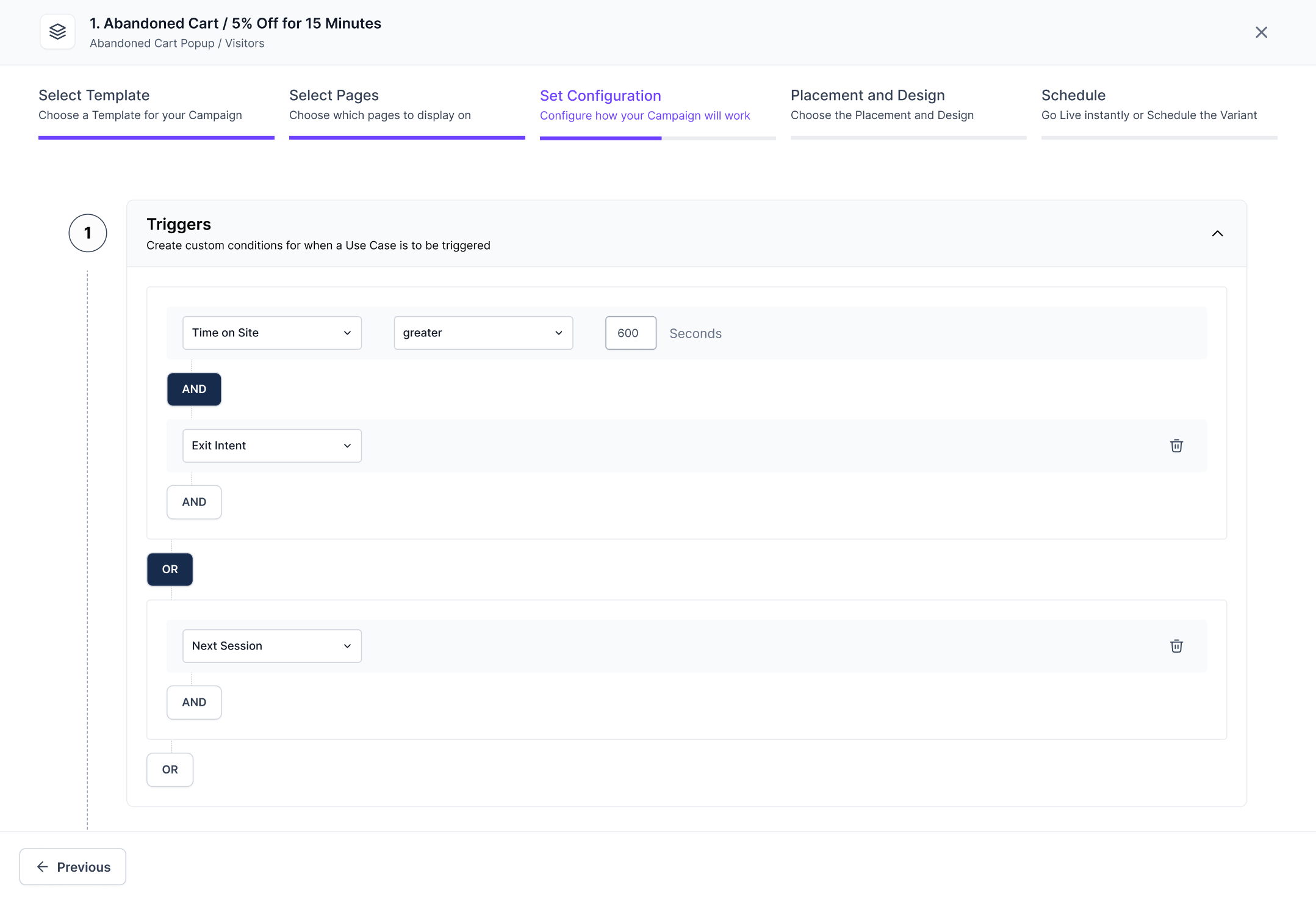
Combining multiple triggers on an abandoned cart campaign
Pick the trigger that matches intent. Exit intent catches people who are about to leave. Time on site catches people who are stuck. They are not the same problem.
When to display
Once the trigger conditions are met, this decides how long to wait.
- Immediately: the element appears as soon as the conditions are met.
- After a delay: wait a set number of seconds first.
A delay is worth using when the trigger fires in the middle of something. If someone just added a product to their cart, a popup half a second later interrupts them. Twenty seconds later, they have had time to keep browsing, and the popup reads as a reminder instead of an interruption.
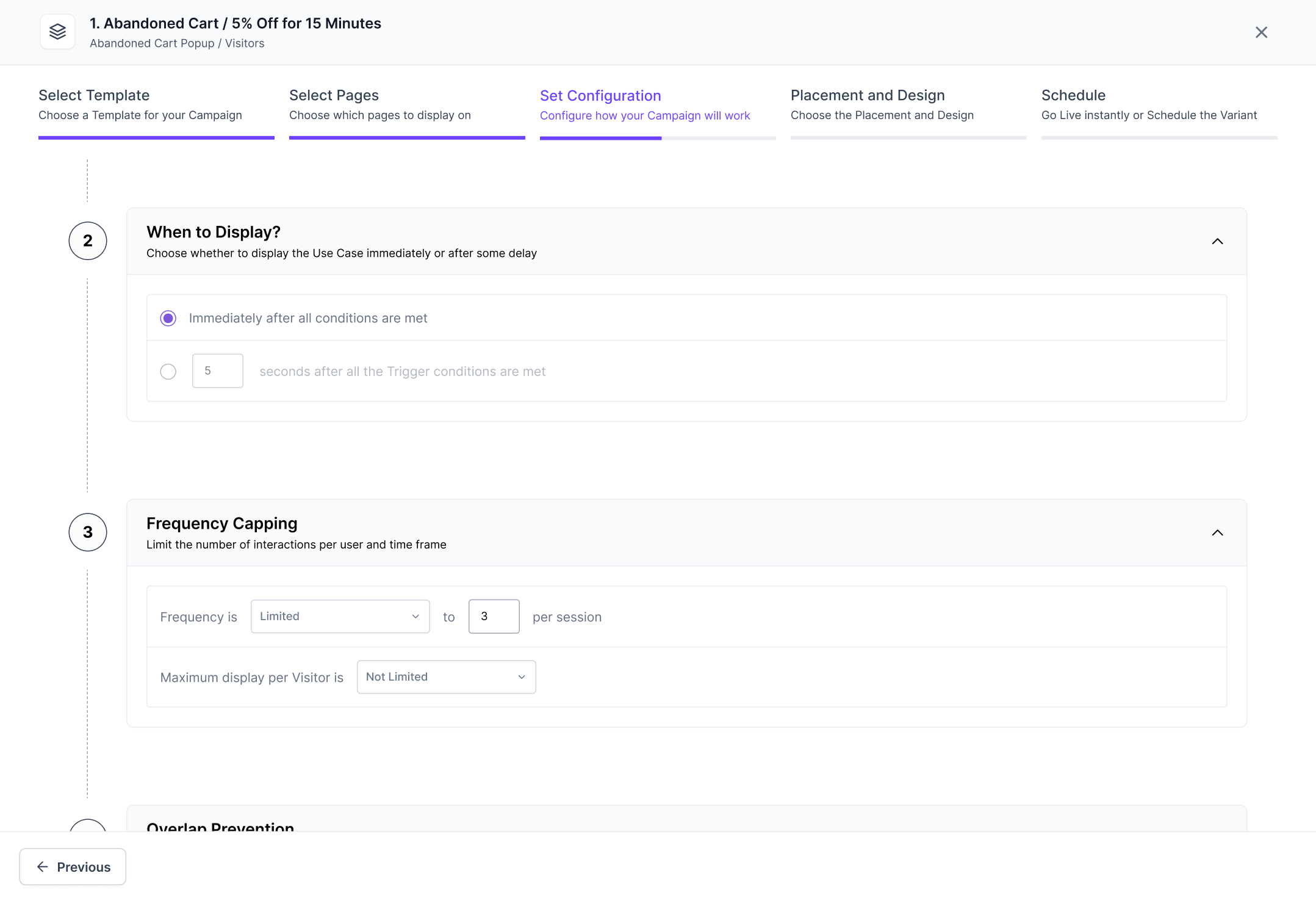
Configuring delay after triggers are met and how many times one person will see the usecase.
Frequency capping
This controls how many times one person can see the element.
You can cap it per session, per visitor, or both. Capping at once per session and ten times per visitor means a person sees it at most once on any single visit, and at most ten times ever.
Turn capping off only when you genuinely want every visit to show the element, like a store-wide free shipping banner. For anything that interrupts, cap it.
Overlap prevention
This decides what happens when this element is ready to appear, but another one is already on screen.
Without it, two popups can land on top of each other. The visitor closes both and remembers neither.
The main option is to show in sequence after a cooldown period. The second element waits until the first is closed, then waits the cooldown you set before appearing. A ten-second cooldown gives the visitor a moment to get back to what they were doing.
NoteWhen to Display, Frequency Capping and Overlap Prevention apply only to popups. Banners and embedded sections do not use it. When more than one banner is active, they rotate in a carousel instead.
Discount
If the element carries an offer, you set it here. You can select a discount code from your Shopify store or configure the campaign to create a personalized discount for every visitor. As in Shopify, you can specify the discount type: product discount, order discount, or shipping discount.
Personalized discounts accept the following configurations:
- The discount itself: a percentage or a fixed amount off.
- How long it is valid: a short window creates urgency. Ten minutes makes the offer feel like something to act on now.
- Minimum quantity: require a number of items before the discount applies, or leave it off so it works on any cart.
- Product Discount Constraints(only applicable to Product Discount): restrict the products or collections the discount applies to. You can do this by including
For popup usecases, the popup will appear only if the discount applies to the products that will be displayed. For example: if an abandoned cart popup is configured to offer discounts only on theBest Sellercollection, it will appear only if the visitor's cart contains an item from theBest Sellercollection.
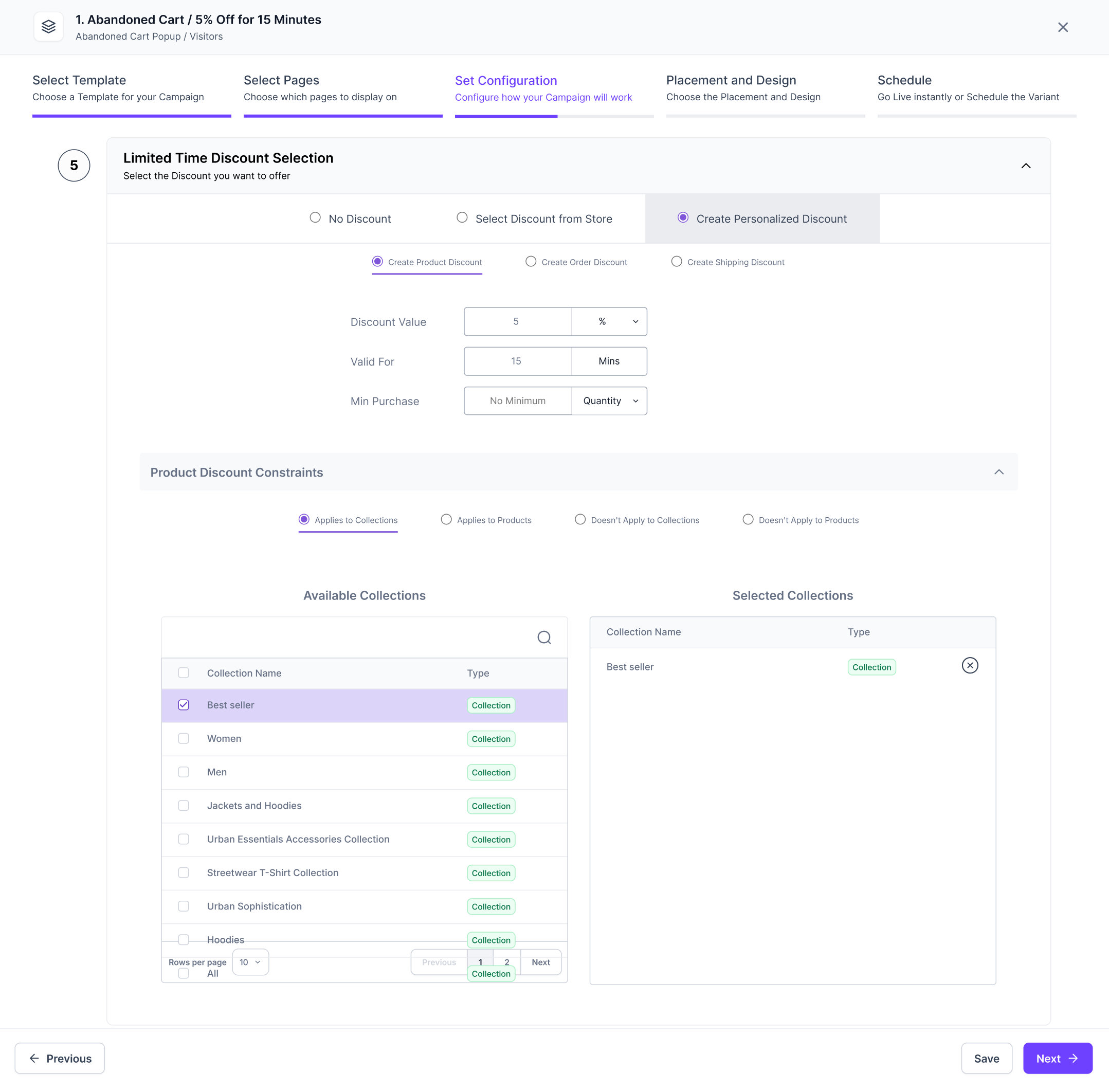
Discount configuration options
A perosonalized product discount without any product or collection constraints will behave the same as an order discount.
Keep the discount as small as possible while still working. Visitors who always wait for a discount show up in the Discount Affinity score on their profile. If that score is high across your customers, you are training people to wait.
Placement
Where on the screen the element sits: top, bottom, center, or a side.
Check it on all three device sizes. Placement that works on desktop often does not on mobile.
Updated about 1 month ago